A quieter place to work
Compare a room with the windows open and closed, or find a calmer spot for your next call.
 Decibel Meter
A little quieter starts here
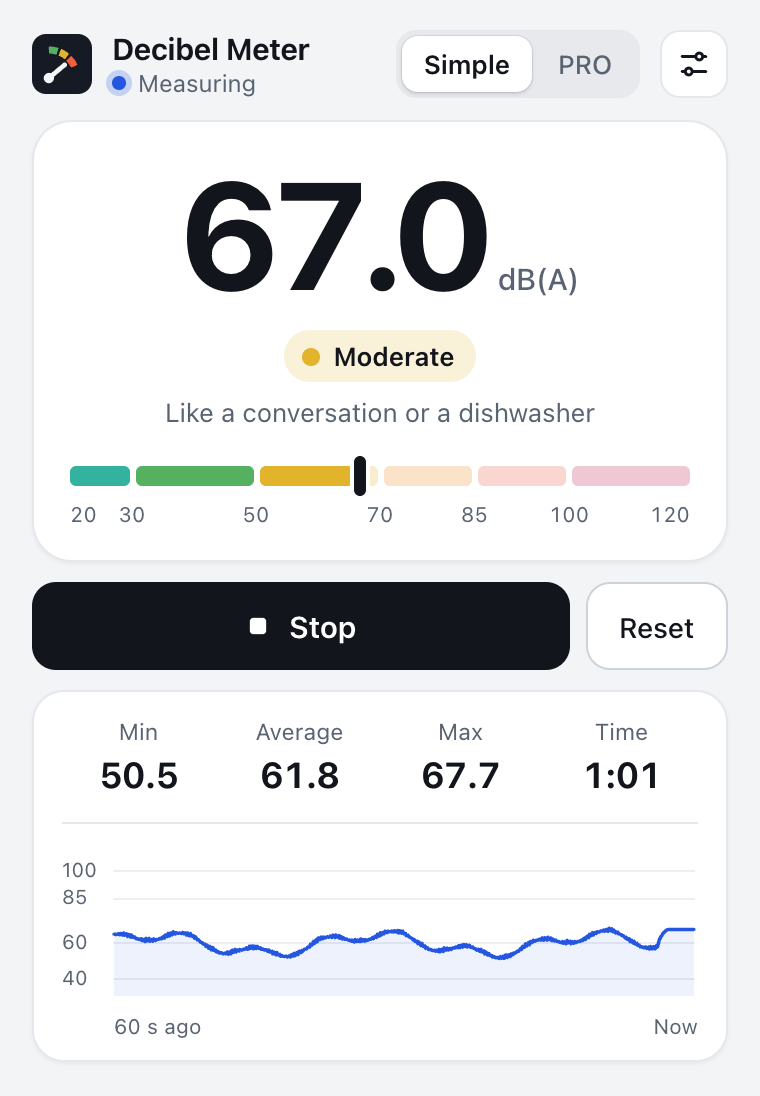
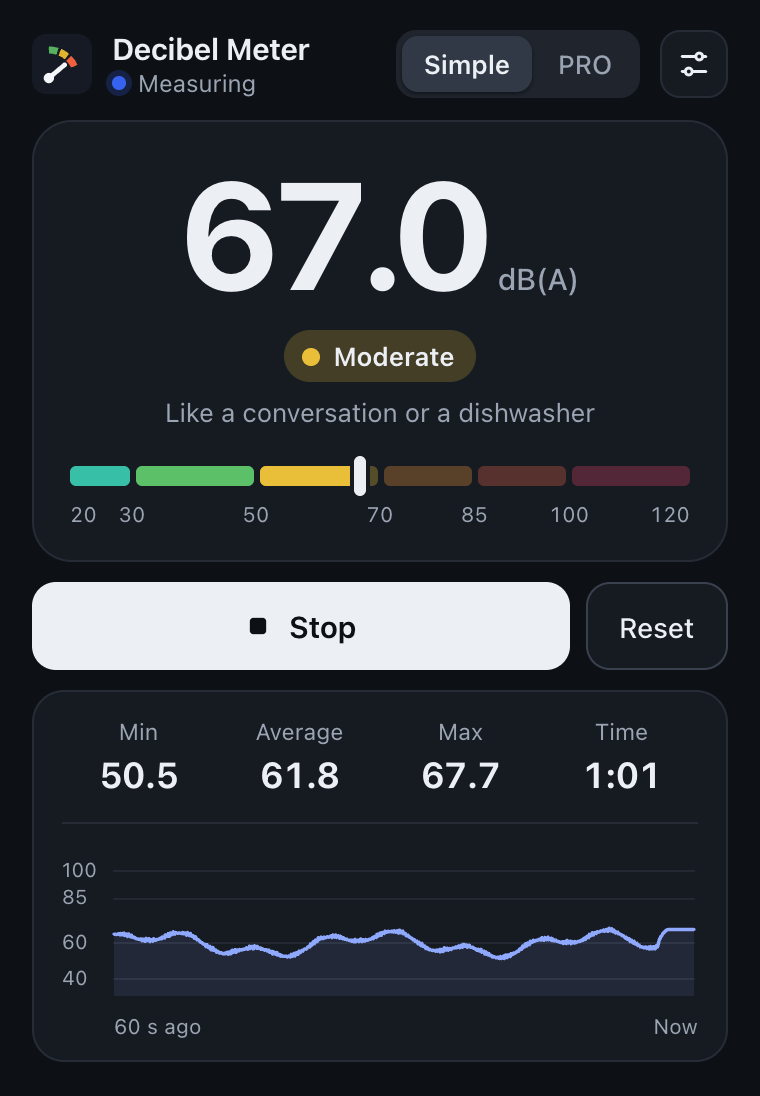
Check the noise level around you using your microphone.
No installation or account required.
Microphone off
ClassroomPress Start to measure with your microphone. Your audio is never recorded or sent.
Microphone overloaded — reading may be too low.
Audio stays on your device.
Nothing is recorded or uploaded.
Alerts follow the average, so a brief spike won’t immediately trigger one. Alert sounds may be picked up by your microphone.
Start measuring to adjust this microphone.
Match needs three seconds of fresh readings. Use the same frequency weighting on the reference meter.
Estimated sound level. Accuracy depends on your microphone and calibration. About accuracy
From microphone to measurement
Press Start measuring and allow microphone access when your browser asks.
Keep the device still and its microphone clear. Watch the average as well as the live reading.
Check changes, set a noise target, or export the readings as a CSV file.
Everyday sound, made visible
Compare a room with the windows open and closed, or find a calmer spot for your next call.
Open the classroom noise monitor on your projector. Set a limit for the activity and keep the wave below the line.
Compare a fan, appliance or room setup using the same device, position and microphone settings.
Also available for your browser
Check noise regularly? Keep Decibel Meter close with the browser extension.
A useful estimate
Phone and laptop microphones are designed for voice, not calibrated sound measurement. Readings depend on microphone sensitivity, input processing, distance and frequency.
Use this meter for quick checks and consistent comparisons with the same device. A calibration adjustment can align it with a reference meter at one level; it does not make it a certified instrument.
For hearing protection, workplace compliance or formal evidence, use an appropriate calibrated sound level meter.
Your microphone, your device
Sound is analyzed in memory inside your browser. Audio is never recorded or uploaded. No account is needed.
Your settings and calibration adjustments stay in this browser. Session readings stay in memory until you close or reload the page; export a CSV if you want to keep them.
Read the privacy policy →A few things worth knowing
It provides an estimate based on your microphone’s signal. Different microphones and browser processing can produce different readings. Calibration helps with comparisons, but the result is not a certified sound-pressure measurement.
The meter needs your microphone to analyze the sound around you. It asks only when you press Start. Stop releases the microphone; your audio is never recorded or uploaded.
It measures sound reaching your selected microphone. It does not capture a browser tab’s digital audio or measure headphone output directly.
Open Advanced settings while measuring. Place a trusted reference meter beside your microphone in a steady sound, select the same frequency weighting on both meters, wait at least three seconds, enter its reading and choose Match reference. The adjustment is saved for that microphone in this browser.
The measurement runs separately from the animated chart. Browsers may still interrupt microphone capture, particularly on phones or when the device sleeps. An interrupted session needs you to return and resume. Keep the page visible for a monitoring session you can observe.
A-weighting reduces low and high frequencies to approximate human hearing sensitivity. C-weighting retains more bass and is useful for music and low-frequency noise. Z-weighting is flat. Changing between them starts a fresh session so differently weighted readings are not mixed.
The web meter is ready whenever you visit this page. The extension adds toolbar access, a reading on its icon, a separate meter window and offline operation.